 Help Center
Your Android device is like the control center of your digital universe, storing everything from personal messages to cherished photos. Keeping it safe from prying eyes and sneaky apps is a must! Dive into this vibrant guide to learn how to lock down your Android device and keep your data under wraps.
1. Activate Automatic Updates
Automatic updates are like a regular tune-up for your device, ensuring it's always equipped with the latest software to fend off new security threats and pesky bugs. It’s the easiest way to keep your phone in top shape—just set it and forget it!
How to Enable:
- Open Settings.
- Go to System.
- Tap Advanced.
- Select System Update.
- Tap Automatic Updates and ensure the toggle is turned on.
Pro Tip: Automatic updates are your device’s best ally against cyber threats. Connect to Wi-Fi to save your mobile data!

2. Set Up a Strong Screen Lock
A robust screen lock is your first line of defense against unwanted snoopers. Skip the easy-to-crack PINs and patterns—opt for a strong password or fingerprint unlock.
How to Do It:
- Open Settings.
- Go to Security & Privacy.
- Tap Device Lock.
- Select Screen Lock.
- Choose Password and create a strong password (at least 8 characters with a mix of letters, numbers, and symbols). Confirm it by entering it again.
Pro Tip: Even if you use fingerprint unlock, set a strong password. It’s your backup if the fingerprint scanner fails or if you’re in a pinch.
3. Enable Fingerprint Unlock
Fingerprint unlock is sleek and speedy but should be paired with a solid password for maximum security.
How to Set It Up:
- Open Settings.
- Go to Security & Privacy and tap Device Lock.
- Select Fingerprint Unlock.
- Choose a backup login option (like Password) and follow the on-screen instructions to register your fingerprint.
Pro Tip: Add multiple fingerprints for different fingers or even other people if needed. More fingers, more security!
4. Turn On Google Play Protect
Google Play Protect scans your apps for malware and other threats, keeping your device safe from sketchy apps.
How to Enable:
- Open Settings.
- Go to Security & Privacy.
- Tap App Security and then the gear icon in the top right corner.
- Toggle Scan apps with Play Protect on.
Pro Tip: Pair Play Protect with a comprehensive antivirus app for an extra layer of security.

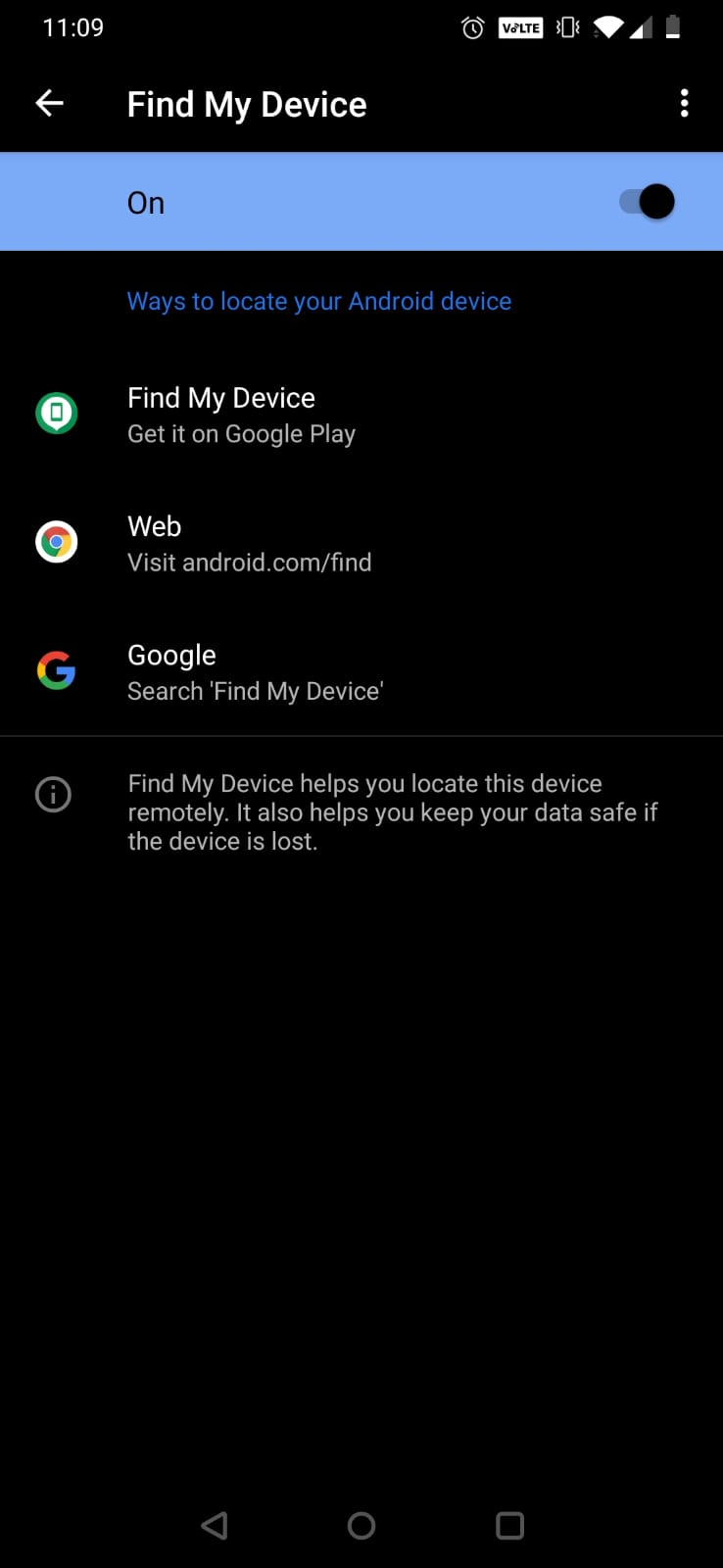
5. Activate Find My Device
Find My Device helps you locate, lock, or erase your phone if it’s lost or stolen. It’s your digital safety net.
How to Set It Up:
- Open Settings.
- Go to Security.
- Select Use Find My Device and toggle it on.
- If Location is off, you’ll see a prompt—tap it to turn on location services.
Pro Tip: Keep Location services enabled to ensure Find My Device works. Be aware that this uses more battery and shares your location with Google.
6. Revoke Unnecessary App Permissions
Apps sometimes request more permissions than they need. Tightening these permissions helps protect your privacy.
How to Manage:
- Open Settings.
- Go to Security & Privacy and tap Privacy.
- Select Permission Manager.
- Choose the relevant permission (like Camera or Location) and review which apps have access. Tap an app and select Don’t Allow to revoke permissions.
Pro Tip: Only grant permissions essential for an app’s core functions. If an app doesn’t need to access your camera, don’t let it!
7. Disable Unwanted Notifications
Constant notifications can be distracting and make you miss important updates. Streamline your notification flow for better peace of mind.
How to Manage:
- Open Settings.
- Go to Notifications and select App Settings.
- Pick the app that's bombarding you with notifications and toggle off All Notifications or specific types.
Pro Tip: To disable notifications directly from a notification, swipe it down, press and hold, then tap the gear icon to tweak settings.
8. Manage Your Google Account Security
Most Android devices are tied to Google accounts, so securing your Google account is key to overall device security.
How to Secure:
- Go to Settings and select Accounts.
- Tap on your Google Account and go to Google Account Settings.
- Review your security settings, and enable features like Two-Step Verification and Security Checkup.
Pro Tip: Regularly check for any unusual activity in your Google account and update your password if anything seems off.


9. Set Up Google Account Recovery Options
If you ever forget your Google account password or get locked out, having recovery options ensures you can regain access.
How to Set Up:
- Open Settings and go to Google Account.
- Select Security and then Recovery Options.
- Add recovery email addresses and phone numbers.
Pro Tip: Keep your recovery details up-to-date to avoid getting locked out. Consider using a recovery key for added security.

10. Configure Lock Screen Notifications
Control how notifications appear on your lock screen to balance privacy and convenience.
How to Set It Up:
- Open Settings.
- Go to Security & Privacy and select Lock Screen Notifications.
- Choose from options like Show all content, Show sensitive content only when unlocked, or Don’t show notifications.
Pro Tip: For better security, choose to hide sensitive content until you unlock your device.

11. Use Strong, Unique Passwords
Using complex, unique passwords for different accounts reduces the risk of a single breach affecting multiple services.
How to Ensure:
- Use a mix of uppercase and lowercase letters, numbers, and symbols.
- Avoid easily guessable information like your name or birthdate.
Pro Tip: Consider using a password manager to generate and store unique passwords for all your accounts.
12. Regularly Review App Permissions and Security
Keeping tabs on which apps have access to your data ensures you aren’t sharing more than you intend to.
How to Review:
- Open Settings and go to Security & Privacy.
- Tap Privacy and then Permission Manager.
- Review and adjust permissions for each app.
Pro Tip: Periodically review app permissions to ensure they still align with what you need. Don’t hesitate to deny permissions if you’re unsure about an app’s use.
Summary
Securing your Android device involves more than just setting a password. It’s about creating a multi-layered defense—strengthening your screen lock, managing permissions, and using features like Find My Device and Google Play Protect to safeguard your digital life. Follow these steps, and you’ll keep your device—and your data—safe and sound.